How to Connect F1Laps on PC, PS5 & Xbox
Connecting F1Laps to your F1 game takes just a few minutes and works on all platforms.
Step 1: Create an Account
Sign up for a free F1Laps account.
Step 2: Download the Telemetry App
Download the F1Laps Telemetry App for your platform:
- Windows - Download from the Microsoft Store
- macOS - Download from the App Store
- iOS - Download from the App Store
- Android - Download from Google Play
Step 3: Log In and Run the App
- Open the app and enter your App code from the F1Laps telemetry page
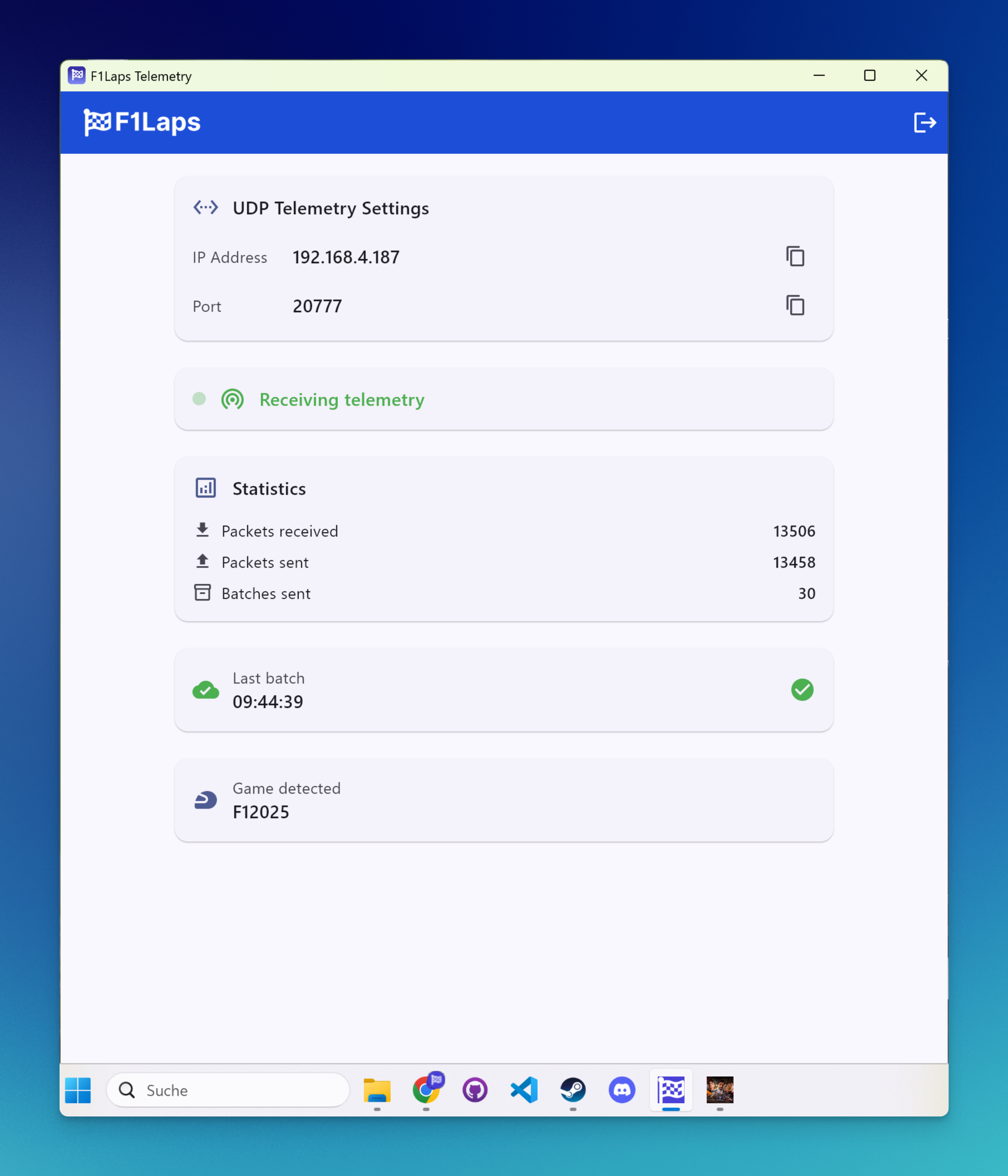
- The app will display your IP Address and Port — you'll need these for the next step
Step 4: Configure Your F1 Game
In your F1 game, go to Settings > Telemetry Settings and enter the IP address and port shown in the app:
- Set UDP Telemetry to "On"
- Set UDP Broadcast Mode to "Off"
- Set UDP IP Address to the IP shown in the app
- Set UDP Port to the port shown in the app
- Set UDP Send Rate to "20Hz"
- Set UDP Format to match your game year (e.g., 2026 for F1 26)
F1 26 players must use the 2026 format. The 2025 format can file sessions under F1 25 and omit F1 26 Boost/ERS data.
Step 5: Start Playing
Start a session in your F1 game. The app will automatically detect the game and begin capturing telemetry.
Requirements
- Your gaming device and the F1Laps app must be on the same WiFi network
- Console players need a separate device (phone, tablet, or computer) running the app
- VPNs must be disabled - they interfere with telemetry data
Troubleshooting
If your data isn't appearing, check our troubleshooting guide.