How to set up F1 telemetry on Windows
Set up the F1Laps Telemetry App on Windows to automatically capture telemetry from your F1 game.
Step 1: Create Your F1Laps Account
Register for a free account if you don't have one.
Step 2: Install the App
Download the F1Laps Telemetry App from the Microsoft Store.
Step 3: Log In
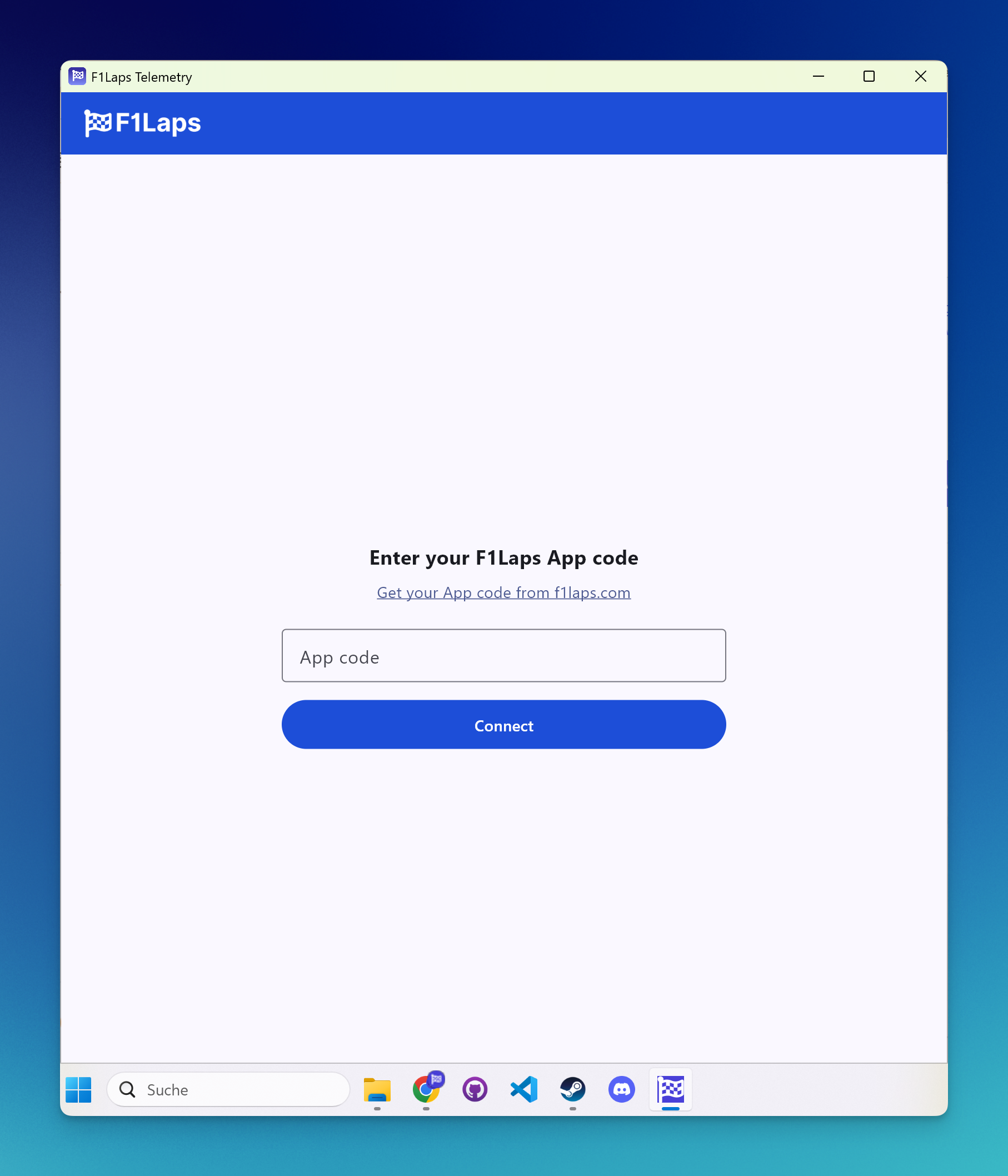
- Go to the F1Laps telemetry page and copy your App code
- Open the F1Laps Telemetry App and enter your App code
Step 4: Configure Your F1 Game
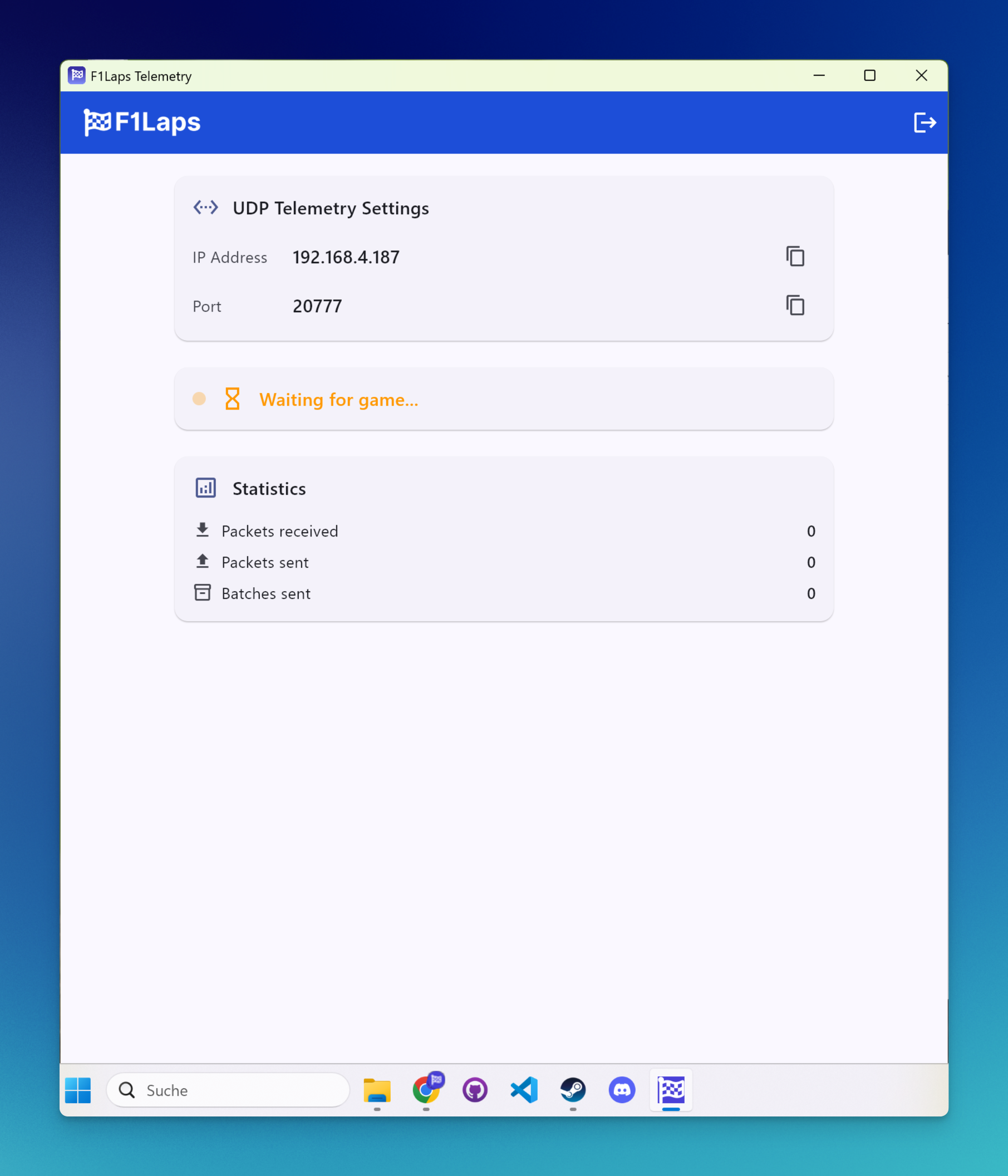
In your F1 game, go to Settings > Telemetry Settings and enter the IP address and port shown in the app:
| Setting | Value |
|---|---|
| UDP Telemetry | On |
| UDP Broadcast Mode | Off |
| UDP IP Address | Enter the IP shown in the app |
| UDP Port | Enter the port shown in the app |
| UDP Send Rate | 20Hz |
| UDP Format | Match your game year (e.g., 2025 for F1 25) |
Step 5: Start Racing
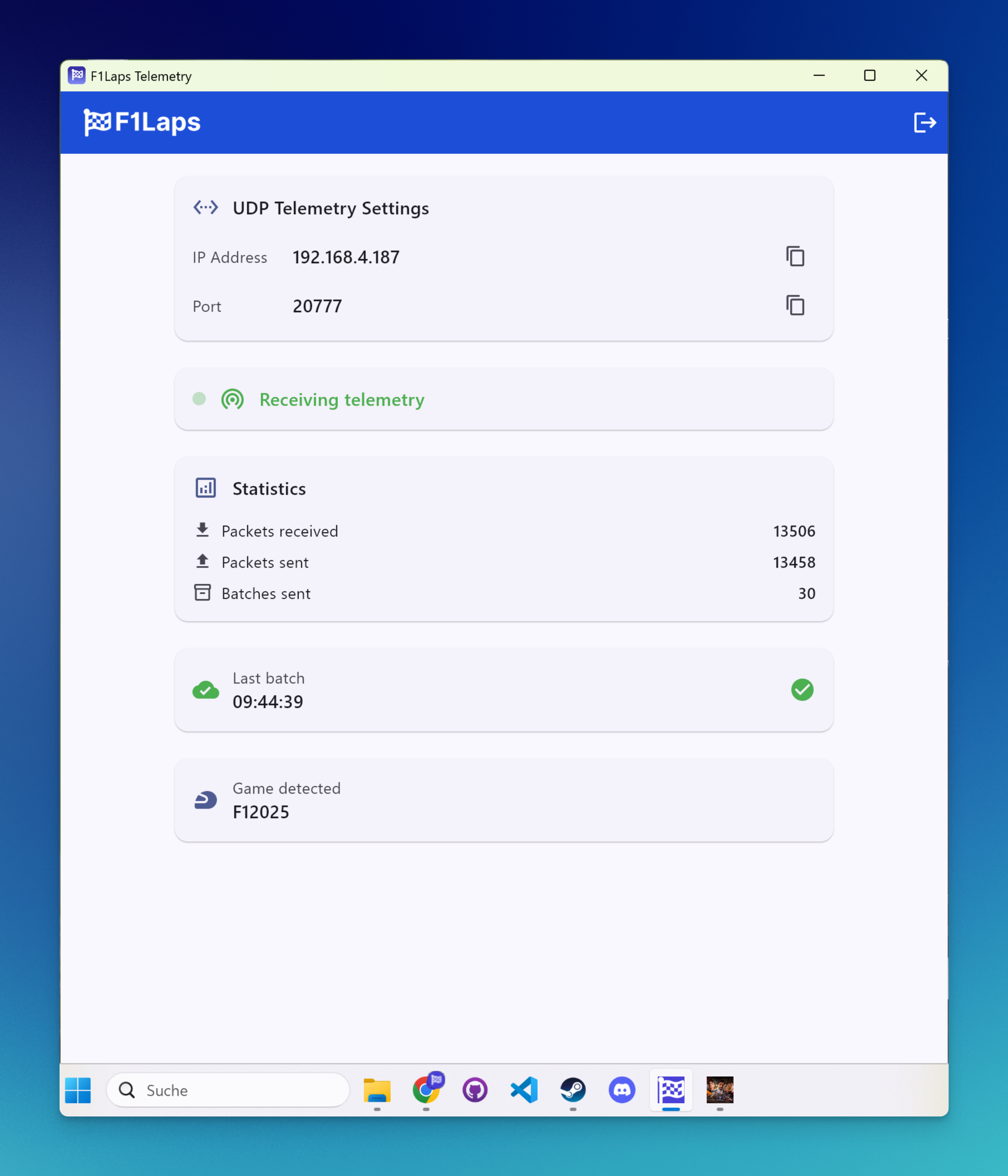
Start a session in your F1 game. The app will automatically detect the game and begin capturing telemetry.
Network Access
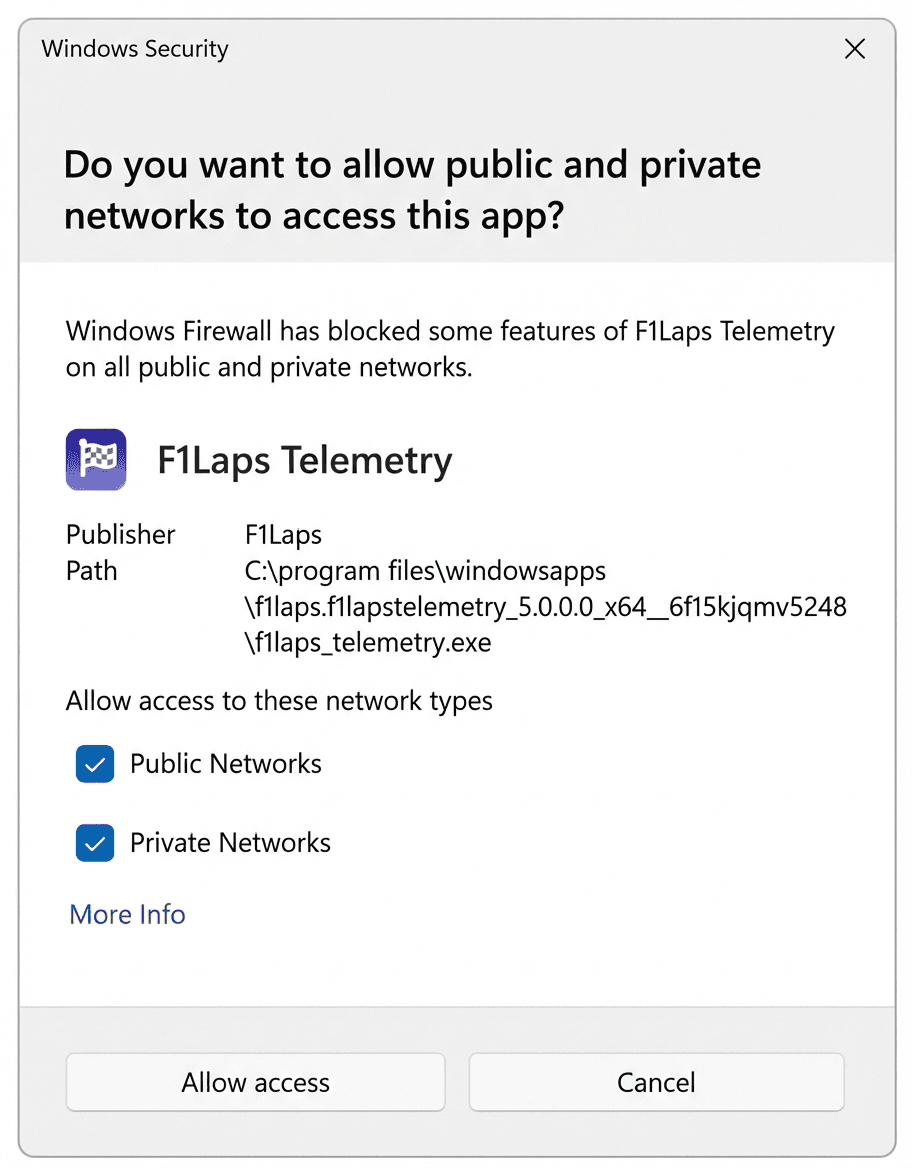
When you first run the app, Windows will ask you to grant network permissions. Click Allow - this is required for the app to receive telemetry data from your F1 game.
Supported Games
The app supports F1 23, F1 24, and F1 25. The game version is detected automatically.
Troubleshooting
If your data isn't appearing, check the troubleshooting guide.