How do I connect F1Laps to my F1 game?
Connecting F1Laps to your F1 game takes just a few minutes and works on all platforms.
Step 1: Create an Account
Sign up for a free F1Laps account.
Step 2: Download the Telemetry App
Download the F1Laps Telemetry App for your platform:
- Windows - Download from the Microsoft Store
- macOS - Download from the App Store
- iOS - Download from the App Store
- Android - Download from Google Play
Step 3: Log In and Run the App
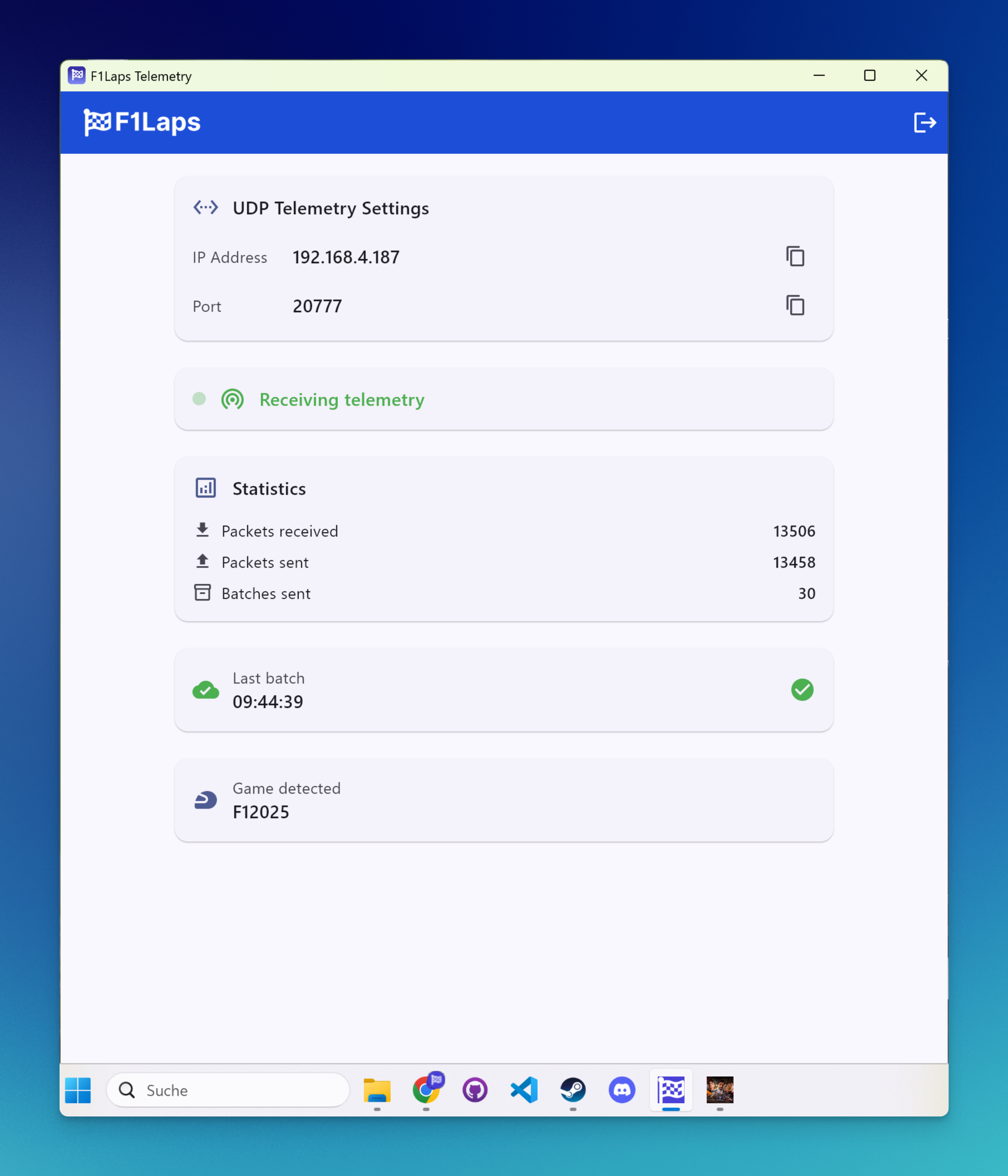
- Open the app and enter your App code from the F1Laps telemetry page
- The app will display your IP Address and Port — you'll need these for the next step
Step 4: Configure Your F1 Game
In your F1 game, go to Settings > Telemetry Settings and enter the IP address and port shown in the app:
- Set UDP Telemetry to "On"
- Set UDP Broadcast Mode to "Off"
- Set UDP IP Address to the IP shown in the app
- Set UDP Port to the port shown in the app
- Set UDP Send Rate to "20Hz"
- Set UDP Format to match your game year (e.g., 2025 for F1 25)
Step 5: Start Playing
Start a session in your F1 game. The app will automatically detect the game and begin capturing telemetry.
Requirements
- Your gaming device and the F1Laps app must be on the same WiFi network
- Console players need a separate device (phone, tablet, or computer) running the app
- VPNs must be disabled - they interfere with telemetry data
Troubleshooting
If your data isn't appearing, check our troubleshooting guide.