Best F1 25 controller settings for gamepad players
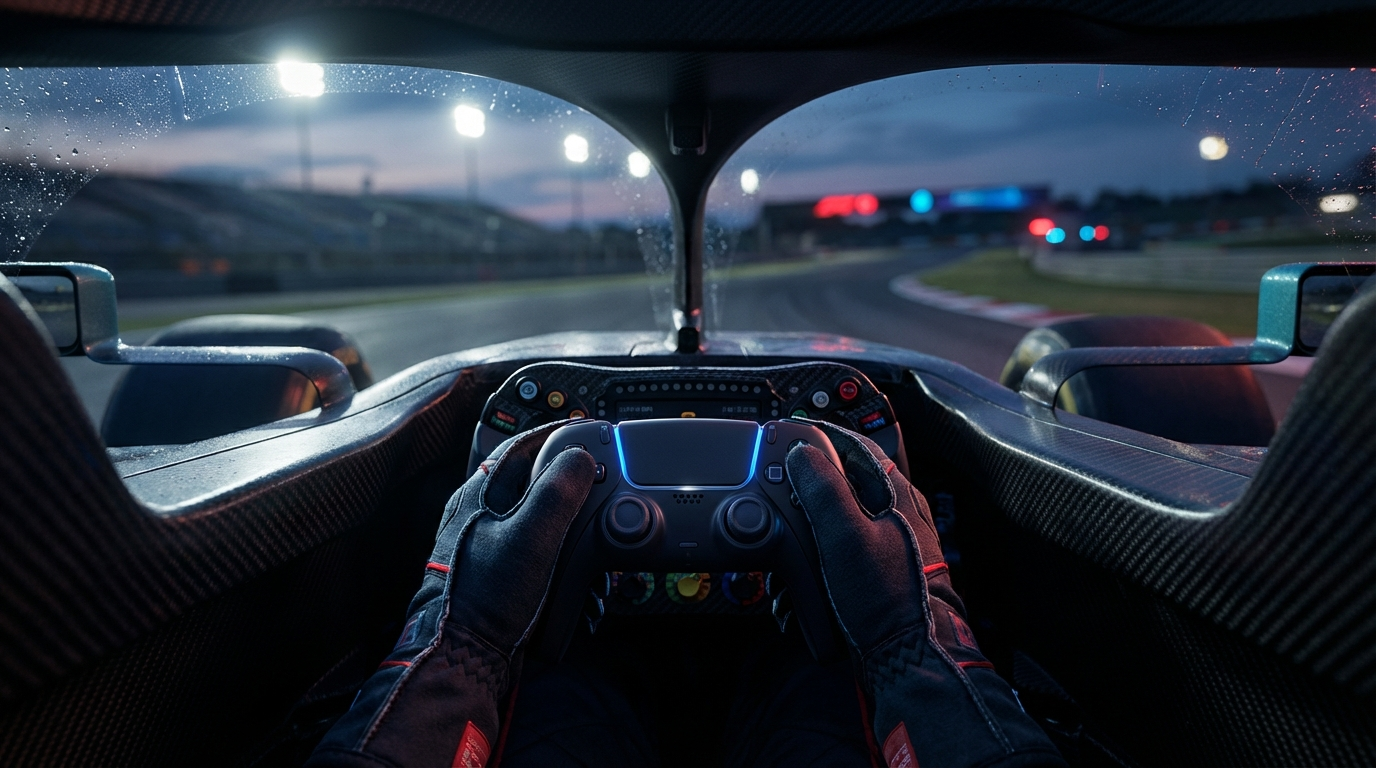
Controller players can finally compete effectively in EA Sports F1 25, thanks to significantly improved pad handling compared to F1 24. The key to consistent lap times lies in properly calibrating your steering linearity (aim for 20-40), keeping deadzones at zero, and using Medium Traction Control as your safety net. These settings give you the precision needed for smooth corner entry while preventing the rear-end snap that plagued controller users in previous titles.
F1 25 introduces smarter pressure detection that responds to how hard you push buttons and triggers. This means proper calibration matters more than ever. Get it right, and you'll shave seconds off your times while eliminating the twitchy, unpredictable handling that frustrates so many gamepad racers.
Steering calibration makes or breaks your corner control
The steering settings have the biggest impact on how your car feels through corners. Here's the consensus from multiple sources:
| Setting | Recommended Value | What It Does |
|---|---|---|
| Steering Rate | 115-130% | Higher = faster steering response |
| Steering Deadzone | 0 | Increase to 3-5 only if stick drift occurs |
| Steering Linearity | 30-40 | Higher = smoother inputs, less twitchy |
| Steering Saturation | 0-20 | Increase if your stick can't reach full lock |
| Max Wheel Rotation | 300-360° | Lower = more responsive |
Steering Linearity is the critical setting here. At 0, your stick input maps 1:1 to steering angle, which sounds ideal but makes small corrections feel aggressive. Bumping it to 30-40 creates a gentler curve at the center position, giving you more precision for slight adjustments without reducing your maximum steering capability. If you're experiencing twitchy steering or constant overcorrection, this is the first thing to increase.
The Maximum Wheel Rotation setting often gets overlooked. Dropping it from the default to 300-360° makes steering more responsive without touching linearity, which helps at tight street circuits like Monaco and Singapore.
Throttle and brake linearity prevents wheelspin and lock-ups
Getting power down smoothly on corner exit separates fast controller players from average ones. The community is split on throttle linearity. Some prefer 0 for maximum responsiveness, others swear by 50-60 for better low-speed modulation:
| Setting | Conservative Approach | Aggressive Approach |
|---|---|---|
| Throttle Deadzone | 0 | 0 |
| Throttle Linearity | 50-60 | 0-30 |
| Throttle Saturation | 0 | 30 |
| Brake Deadzone | 0-3 | 0 |
| Brake Linearity | 25-30 | 0-25 |
| Brake Saturation | 0-20 | 0 |
For intermediate players struggling with wheelspin, start with throttle linearity at 50-60. This gives you more travel at partial throttle, exactly where traction is most delicate. Combined with Medium Traction Control, you'll get power down far more consistently.
Brake linearity at 25-30 helps prevent lock-ups by making the initial brake zone less aggressive. If your DRS keeps closing unexpectedly on straights, add 1-3% brake deadzone to ignore any residual trigger signal.
Force feedback settings that actually help you feel the car
Don't dismiss controller vibration as a gimmick. Properly configured, it tells you when you're approaching the grip limit:
| Setting | Recommended Value |
|---|---|
| Vibration & FFB | On |
| FFB Strength | 130-150 |
| On Track Effects | 40-60 |
| Rumble Strip Effects | 30-50 |
| Off Track Effects | 30-50 |
| Wheel Damper | 10-50 |
On Track Effects is the most useful feedback. It increases vibration as you approach the traction limit. Keep this at 40-60 for noticeable feedback without it becoming distracting. Rumble strips should be moderate; too high and curb riding becomes annoying rather than informative.
For PS5 DualSense controllers, adaptive triggers at Medium adds physical resistance to throttle and brake inputs, simulating pedal feel. Some players love this; others find it fatiguing over long stints.
Assist settings that balance speed with consistency
The unanimous recommendation for controller players: Medium Traction Control. This is non-negotiable for intermediate racers. It prevents rear-end snap while still punishing genuinely poor throttle application. Full TC costs about 0.5 seconds per lap at most tracks, while no TC is brutally unforgiving on a controller.
Here's the ideal progression path:
- Traction Control: Medium (essential for controller)
- Anti-Lock Brakes: On initially, disable once comfortable
- Steering Assist: Off (reduces your precision)
- Braking Assist: Off (you need full braking control)
- Racing Line: Corners Only (shows braking points without cluttering the screen)
- Gearbox: Automatic, then Manual with Suggested Gear
- ERS Assist: Off (manual deployment gives tactical advantage)
- Pit Assist: Off (saves time on pit entry)
Testing at Imola showed that running full assists costs approximately 4 seconds per lap compared to assists off. For intermediate players, Medium TC with Steering/Braking assists disabled represents the best balance. You'll be 1-2 seconds faster than full assists while maintaining consistency.
Xbox and PlayStation controllers handle slightly differently
Core calibration values work identically across both platforms, but hardware differences matter:
PlayStation DualSense offers adaptive trigger support with four intensity levels. Set this to Medium for useful resistance without fatigue. The haptic feedback provides more nuanced vibration than standard rumble, and these features require USB connection on PC with Steam Input disabled to function properly.
Xbox controllers have reportedly more sensitive triggers according to community feedback. If you're experiencing inconsistent throttle application on Xbox, try increasing throttle linearity by 10-15 compared to PlayStation settings. Xbox's Impulse Triggers provide trigger-specific rumble similar to DualSense, though without the resistance simulation.
Both controller types benefit from the Test Buttons feature in calibration. Verify your triggers reach 100% and return cleanly to 0% before racing.
What changed from F1 24 to F1 25
F1 25 represents a significant improvement for controller players. The handling model was developed with pro sim racers and specifically addresses pad responsiveness:
The new calibration system emphasizes Steering Linearity and Saturation as the primary tuning mechanisms, making steering feel smoother out of the box. Button pressure detection is now "intelligent enough to detect how much pressure you put on the buttons," which means aggressive inputs feel less binary.
Oversteer is more controllable than F1 24. Some community members actually feel it's too easy to correct slides. The trade-off is that mid-corner understeer is more prevalent, requiring different car setups focused on front-end grip.
Critically, F1 24 car setups don't transfer well to F1 25. The new handling model wants higher downforce levels and different differential settings. Controller-specific setups should use On-Throttle Differential at 10 (much lower than wheel users) and rear wing 2-4 clicks higher than front for stability.
Recommended button remapping saves time
The default button layout wastes valuable real estate on camera controls you'll rarely use. Optimized mapping for competitive play:
- Unbind Look Forward/Back/Left/Right entirely
- Look Back: Left Stick press (quick rear mirror check)
- Brake Bias +/-: Right Stick left/right (critical for tire wear management)
- Differential +/-: Right Stick up/down (adjust mid-race for track conditions)
This puts your most-used adjustments on the right analog stick, accessible without lifting your thumbs from controls.
Conclusion
The optimal F1 25 controller setup for intermediate players centers on Steering Linearity 30-40, Throttle Linearity 50-60, and Medium Traction Control. These three settings address the biggest controller pain points: twitchy steering, wheelspin on corner exit, and rear-end instability.
Start with deadzones at zero and only increase them if you experience drift. Use Maximum Wheel Rotation at 300-360° for responsive steering, and don't skip force feedback. On Track Effects at 40-60 genuinely helps you feel grip limits through vibration.
The most important insight from community testing: F1 25's improved pad handling means settings that felt necessary in F1 24 may now be overkill. Start with moderate values, test in Time Trial, and adjust incrementally. Your settings should feel natural, not like you're fighting the car. With F1 25's refined detection, that balance is finally achievable on controller.